






This manual describes the main functions that can be viewed and changed by accessing the HUAWEI Echolife EG8145X6 router with firmware version V5R019C00S100.
You can access the user interface of the HUAWEI router through a web browser, from a computer or from mobile devices such as tablets and smartphones.
Through the user interface you can configure the device, enable/disable functions and obtain information on the status of the router and of your connections.
HOW TO ACCESS
To access the user interface, connect a device such as a PC, smartphone or tablet to the router, by cable or wirelessly.
- Open the browser you use for browsing (safari, firefox, edge, chrome);
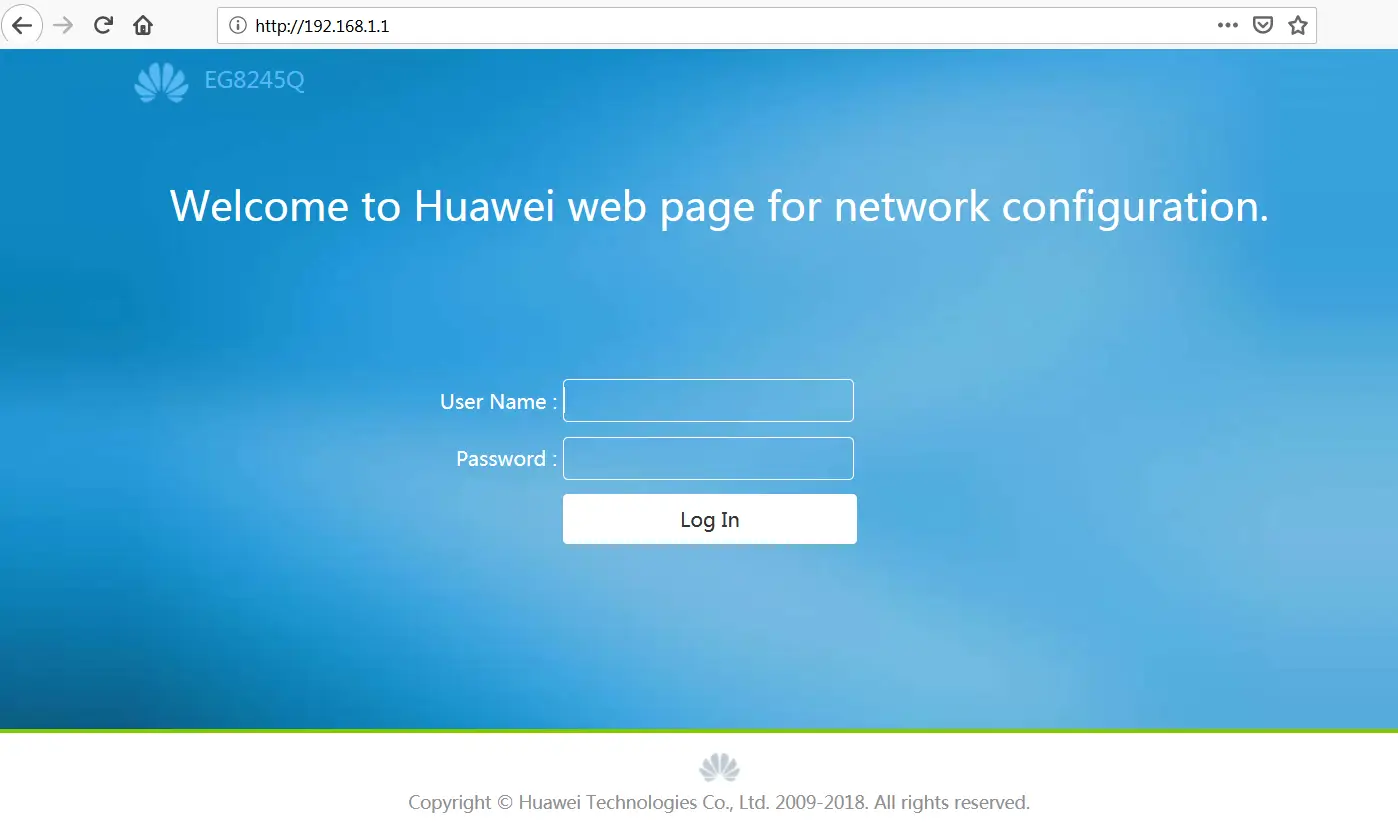
- In the address bar, type https://192.168.1.1;
- Enter the Account and Password shown on the grey label underneath the router and click Login.
HOME PAGE
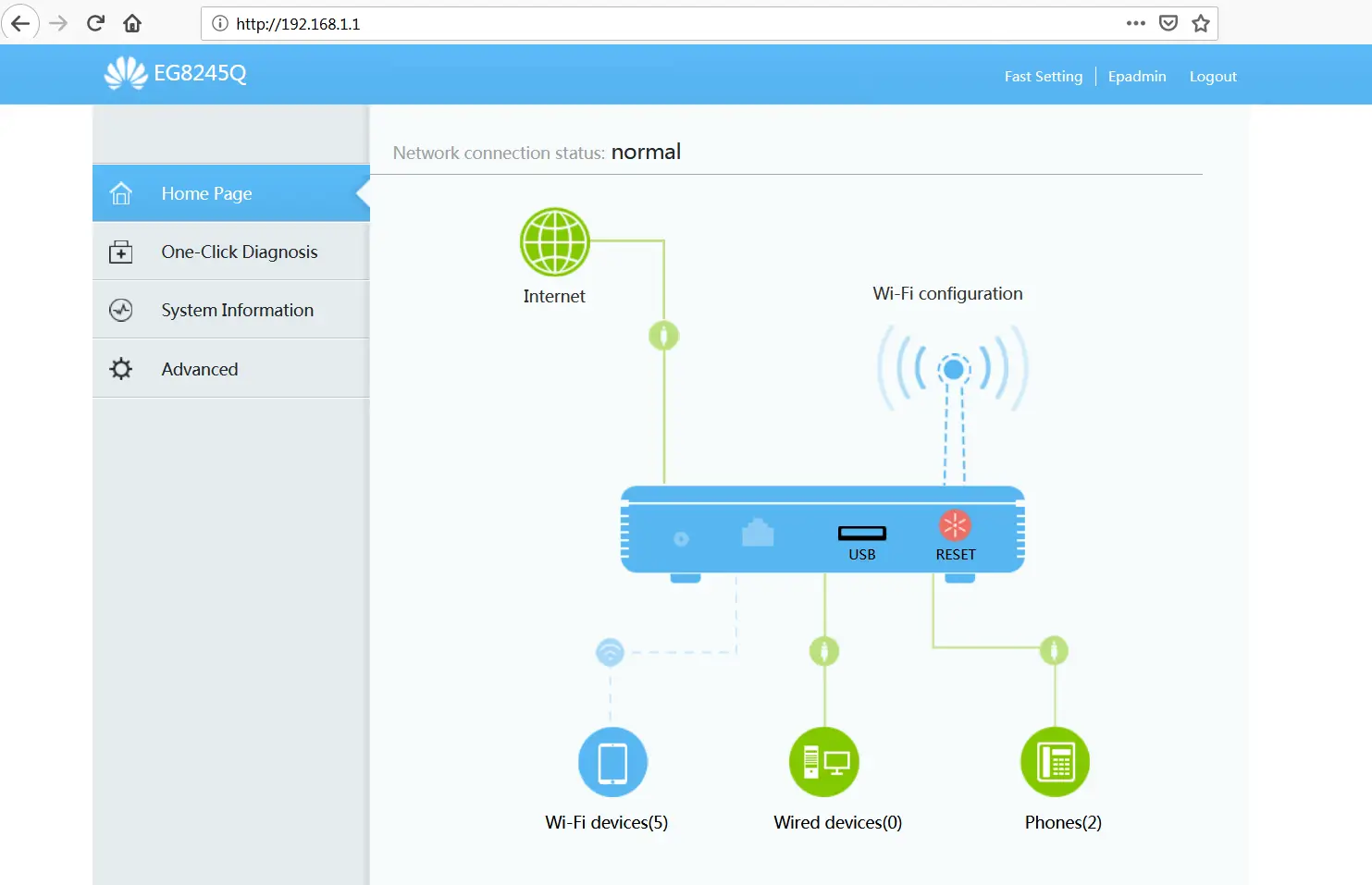
The Home Page shows information on the general status of the router.
Each of the icons shown on this screen can be clicked and will take you to a short summary of the specific service selected. From the summary you can also carry out some basic operations, including:
- Internet: information on the status of the Internet connection;
- Wi-Fi configuration: information on the status of the wireless connections, with the option of changing the network name (Wi-Fi Name) and its Password, for both the 2.4 Ghz and the 5 Ghz networks;
- USB: information on the status of the USB port;
- RESET: information on the router’s system configurations. We advise against changing the settings in this section and/or resetting the router to its default settings;
- Wi-Fi devices: information on the status of the wireless devices paired with the router, with the option of preventing them from pairing using the Add to Blacklist button;
- Wired devices: information on the status of the devices connected to the router by Ethernet cable, with the option of preventing them from pairing using the Add to Blacklist button;
- Phones: information on the status of the telephones connected to the router, if the voice service is active.
LAN
LAN HOST - DHCP SERVER
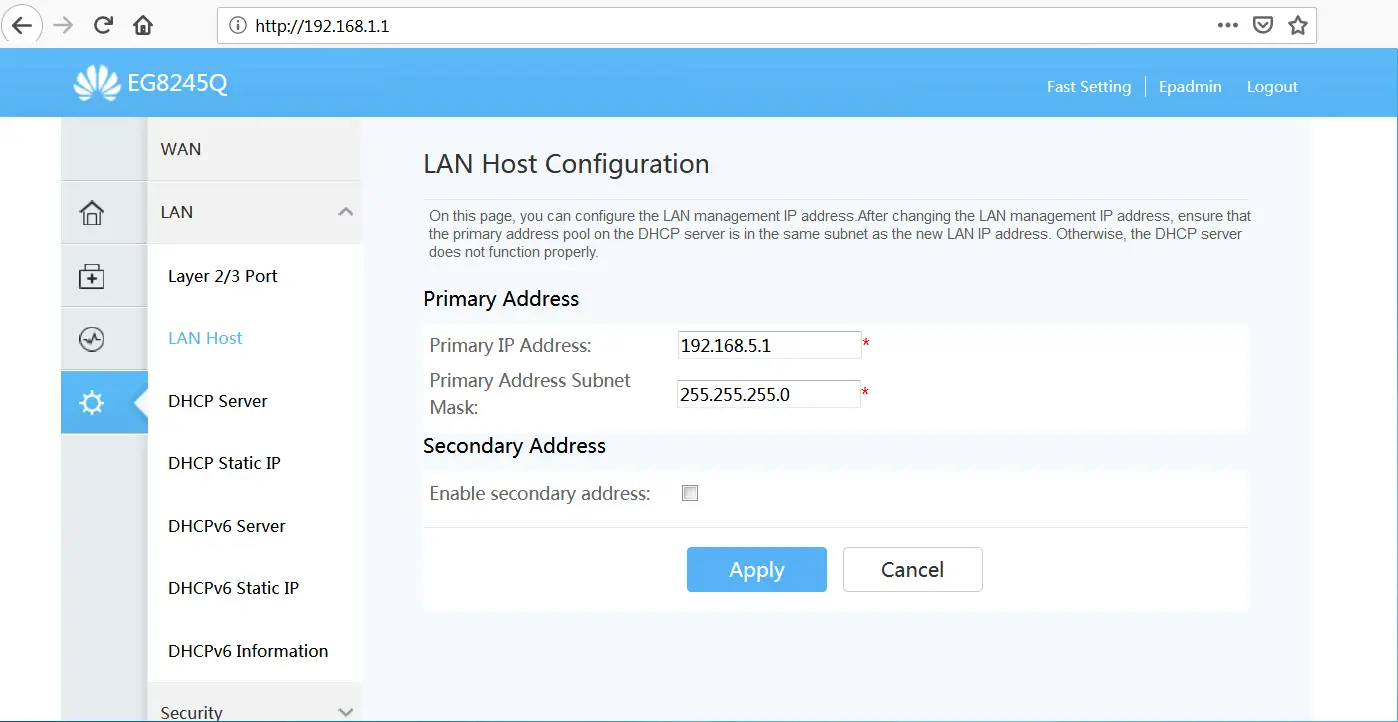
In most home networks there is no need to change the LAN settings, and all devices connected to the router should be able to browse normally. Only change the IP addressing data if your network has specific requirements. Please note that changing these parameters could cause one or more devices on the network to malfunction, so we advise against changing the settings on this screen unless you have in-depth knowledge of the subject.
To change the LAN settings, in the menu bar on the left click Advanced and then LAN.
Click Lan Host and change the Primary IP Address field, setting the IP address to be assigned to the router. Click Apply.
The DHCP server settings will change automatically based on the IP set. If there are specific DHCP options to change, click DHCP Server and change them as required.
WLAN
In the menu bar on the left, click Advanced and then WLAN.
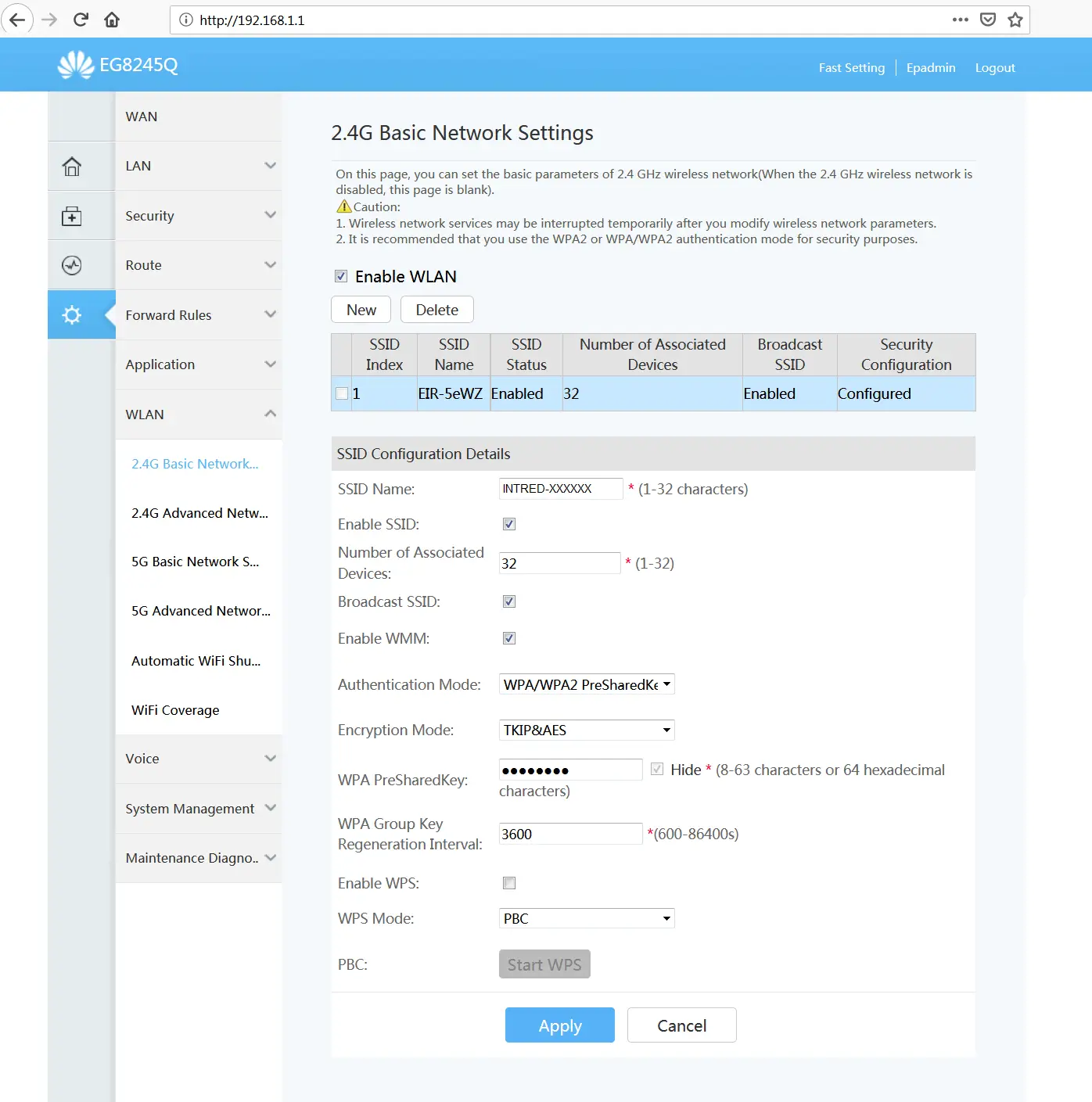
The 2.4G Basic Network Settings and 5G Basic network settings sections show the same configurations for the 2.4 Ghz and the 5 Ghz bands respectively.
Select one of the two, depending on the network you want to change.
The settings applied by Intred when configuring the router are shown below. Intred's configurations are applied in the same way to both the 2.4 Ghz and the 5 Ghz networks.
From the settings on this screen you can:
- Enable or disable the network with the Enable WLAN option;
- Change the network name (SSID Name). This name will then be displayed by devices when they search for the network;
- Decide whether to hide or show your network's SSID with the Broadcast SSID option;
- Add or remove a network with the New and Delete options.
You can also change the network security options with the following settings:
- The network encryption method, from the Authentication Mode drop-down menu: we recommend keeping WPA/WPA2PreSharedKey encryption to avoid some devices on the network malfunctioning;
- The password for accessing the Wireless network: change the value in the WPA PreSharedKey field.
Click Apply for the changes to take effect.
We advise against changing the other values on this screen, to avoid some devices on the network malfunctioning.
2.4G/5G ADVANCED NETWORK SETTINGS
In the menu bar on the left, click Advanced and then WLAN.
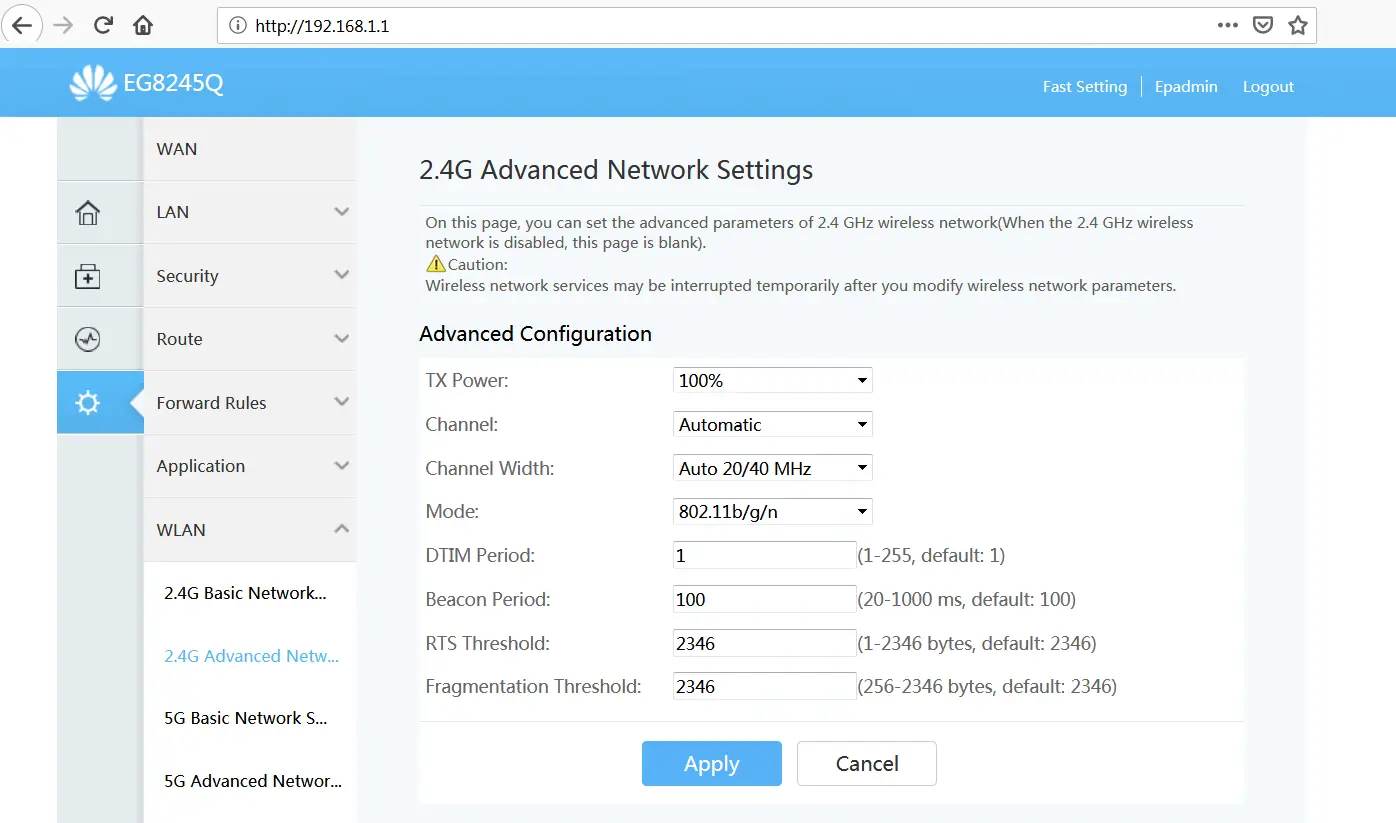
The 2.4G Advanced Network Settings and 5G Advanced network settings sections show the same configurations for the 2.4 Ghz and the 5 Ghz bands respectively.
We recommend using this section only to change the wireless transmission channel. The router is already configured to select the best wireless channel. The channel should only be changed if there are degradation problems strictly related to wireless performance. In any case, we recommend reading up thoroughly before changing the channel.
From the Channel drop-down menu, select the transmission channel you want to use. Click Apply.
AUTOMATIC WiFi SHUTDOWN
In the menu bar on the left, click Advanced and then WLAN.
Then click Automatic WiFi Shutdown.
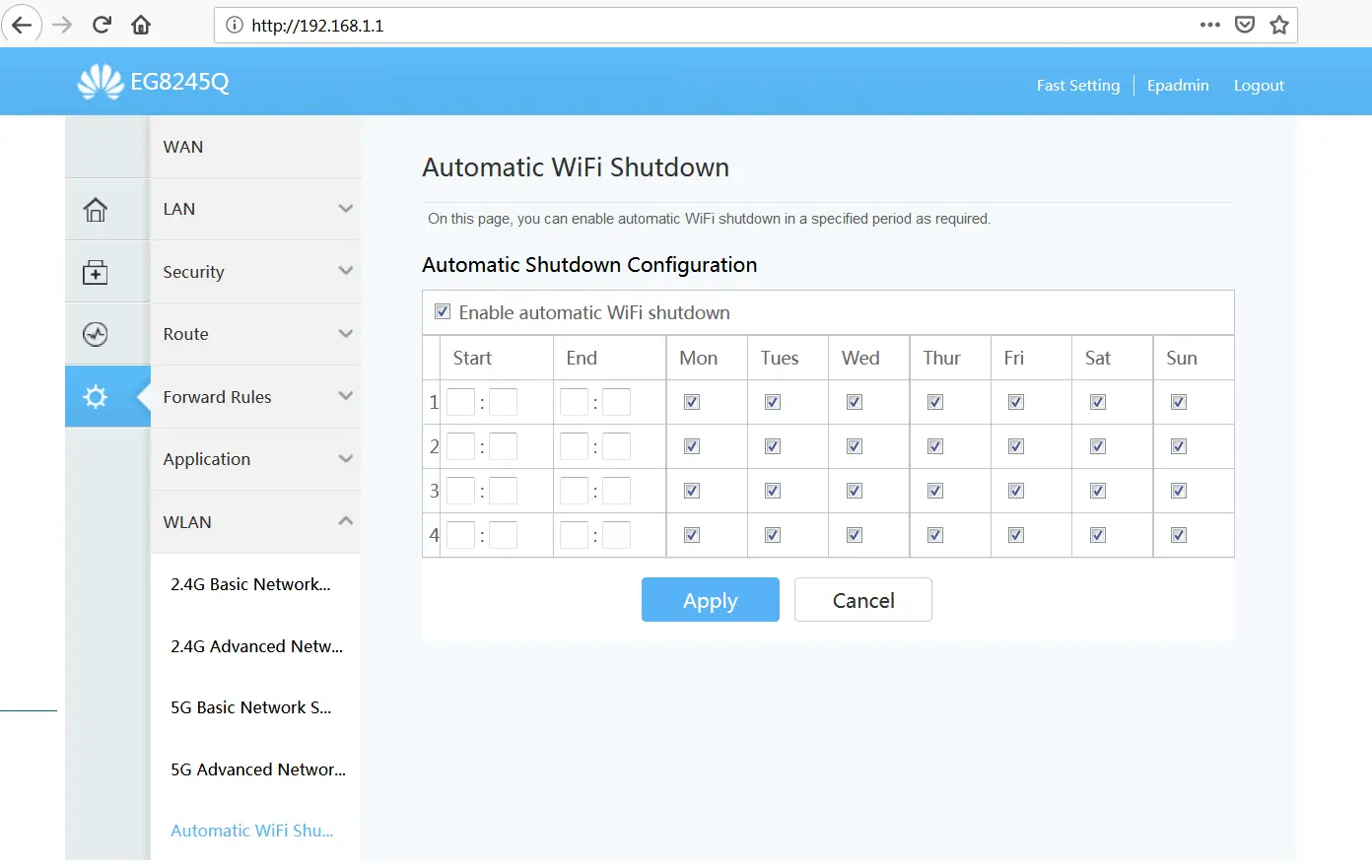
In this section you can switch the wireless network off or on only during specific time slots of your choice.
Tick Automatic Shutdown Configuration to enable the option.
Fill in the fields as required and finally click Apply.
FORWARD RULES
PORT MAPPING CONFIGURATION
Intred lines are currently configured with NAT (private IP/shared public IP). As a result, the configurations applied in the Forward Rules section (port opening) may not work even if they are set correctly. If, after port opening has been set correctly, the services still do not work properly, you will need to contact Intred Sales Support and subscribe to the Static Public IP service.
Please remember that the current NAT configuration of the Intred line does not in any way prevent a normal browsing experience, and all Internet services remain fully usable
Therefore, only proceed with the necessary configurations after subscribing to the Static Public IP service.
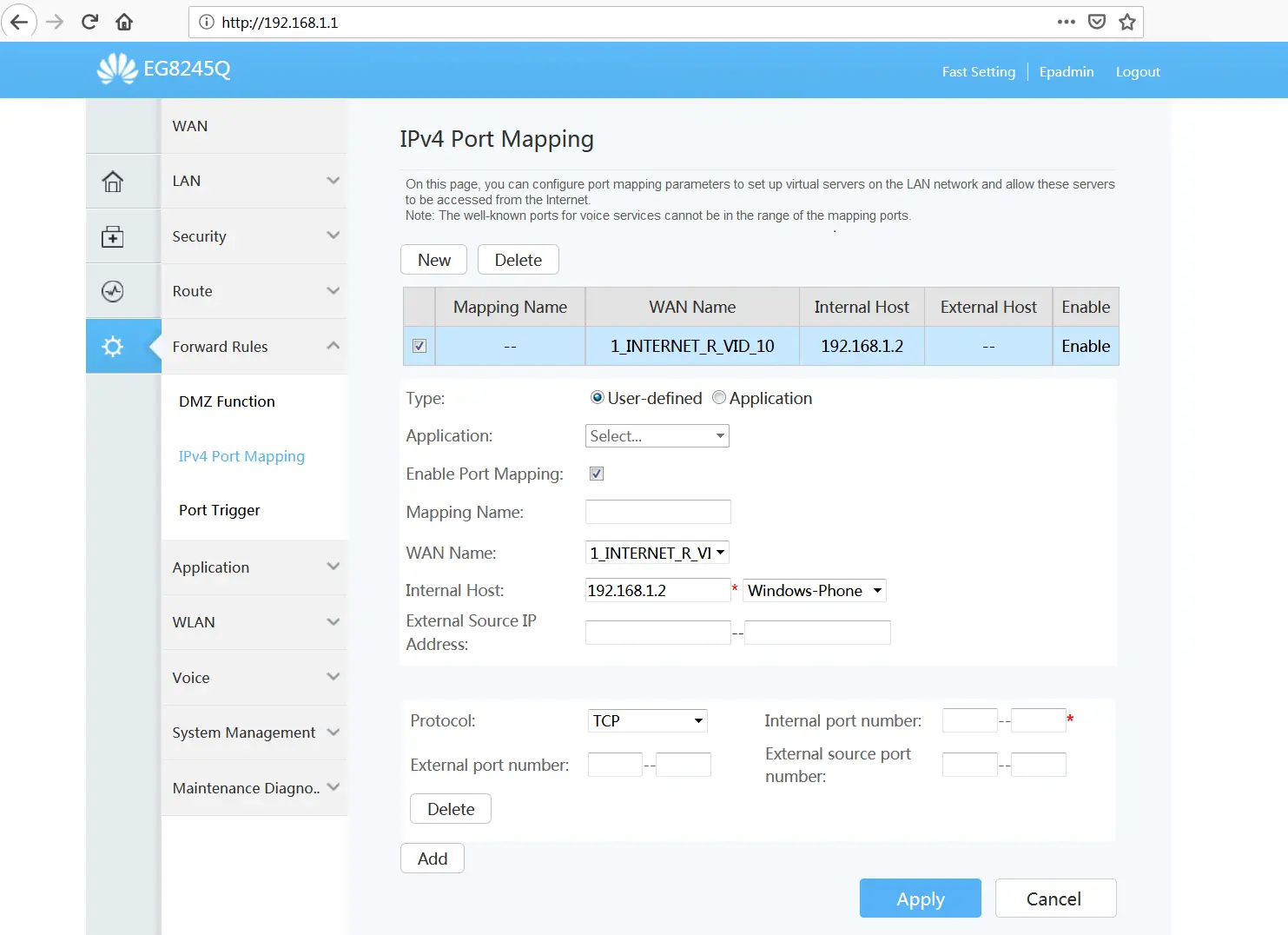
In the menu bar on the left, click Advanced and then Forward Rules.
Then select IPv4 Port Mapping.
Now click New.
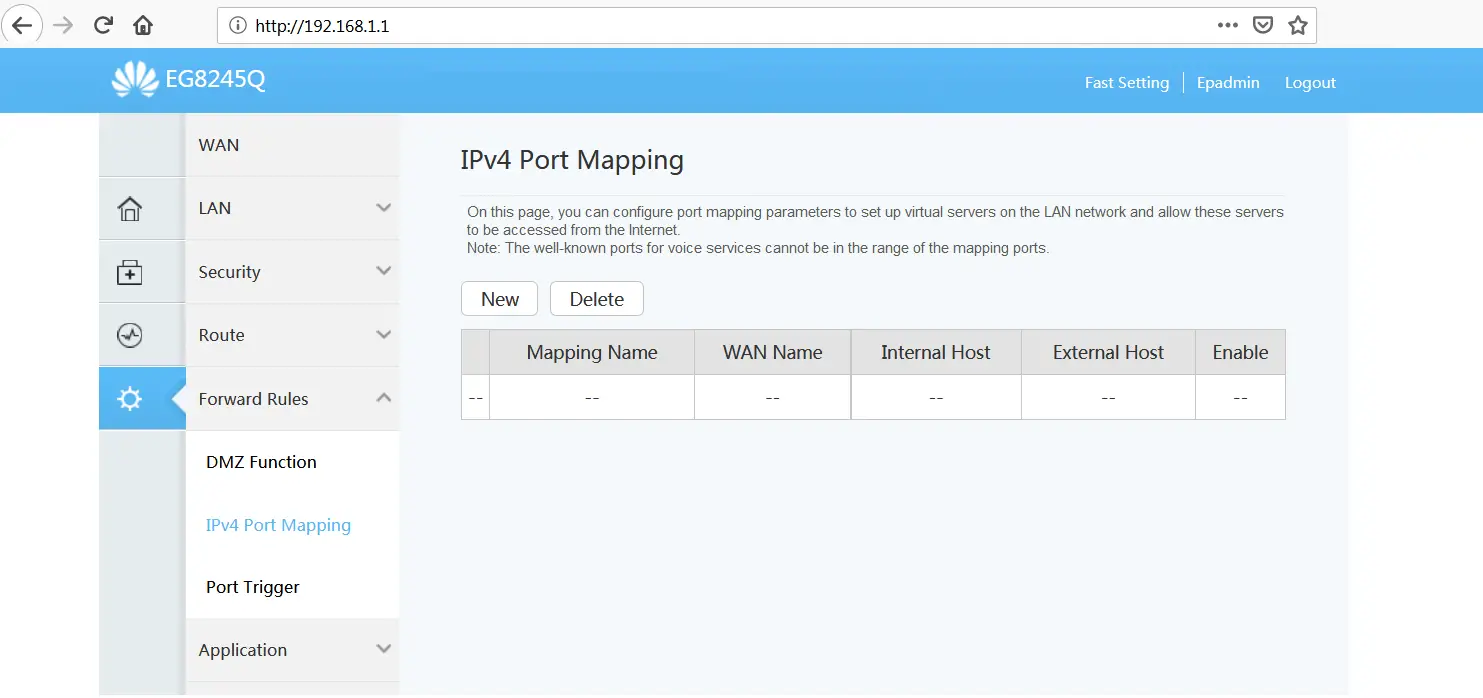
Click Add and fill in the fields displayed as required.
Leave the default User-defined option under Type if you need to open specific ports with their protocol.
Instead, tick the Application option under Type and then select an option from the Application drop-down menu if the port to be opened is one of those offered in the list.
Please remember, in any case, that Intred does not know either the internal IP addresses set on your devices or the ports that need to be enabled for the various applications on the market, so you will need to obtain this information directly from the device itself and from the application provider.
Finally, click Apply.
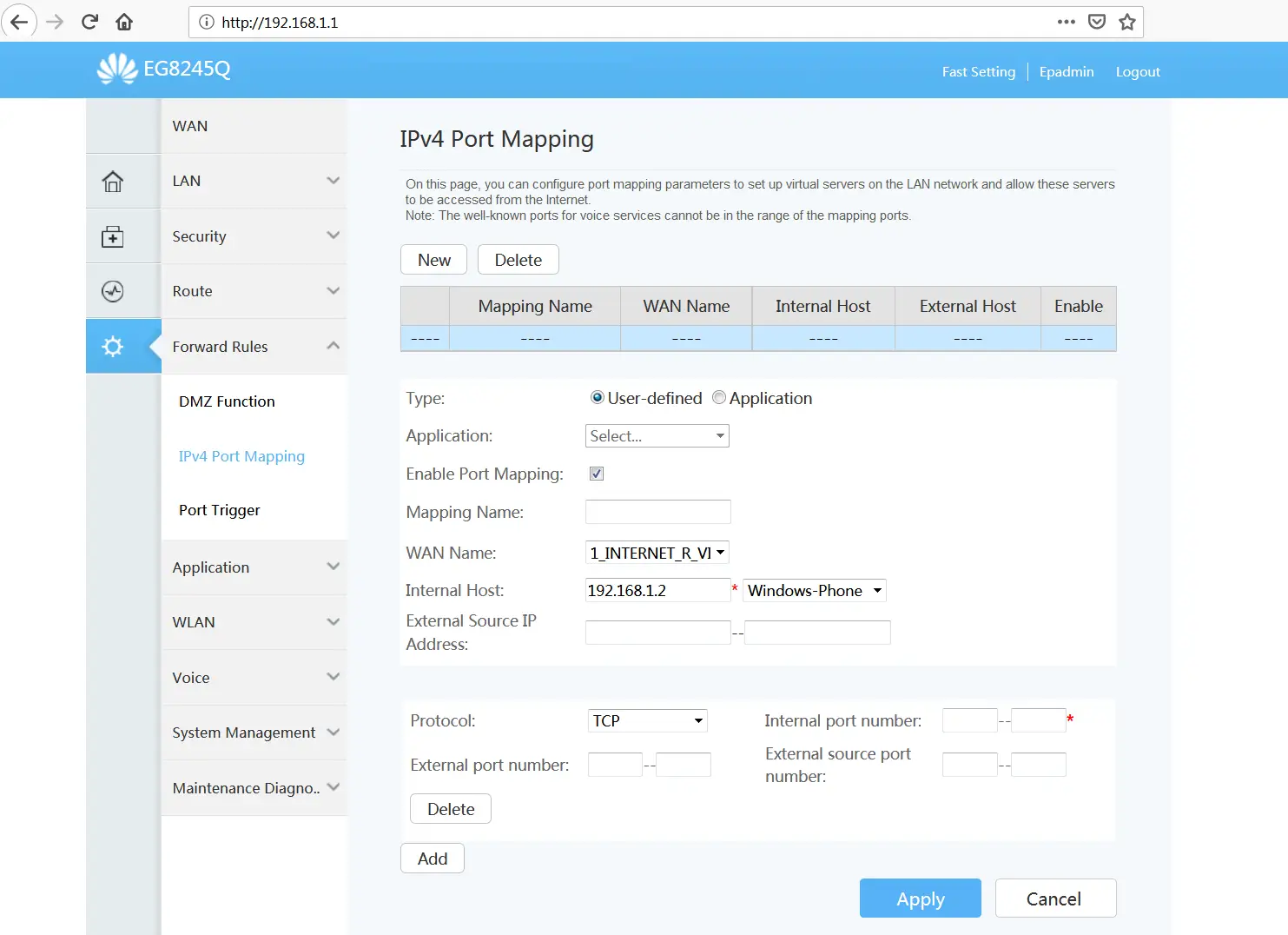
Once you have set up port opening rules, they will be shown as a list on the main page of the IPv4 Port Mapping section.
To make changes to an applied rule, select it from the list and change the necessary fields. Then click Apply.
To remove applied rules, select the rule from the list and click Delete.
Please remember that HUAWEI routers are configured by Intred for maximum line performance. We therefore advise against changing the device settings unless you know exactly what changes you are making.
Intred advises against changing any other configuration or parameter, apart from those listed above, so as not to cause stability or performance issues with the service provided.